Change Store Image for Layout
In this section we will learn how to change store images for layouts. You may want to update image when the layout changes and you want to draw on the latest store images.
Prerequisites
- Your account must have
AdminorLayout Editorrole - You must have
WRITEpermission on the store that you want to edit layout
Steps
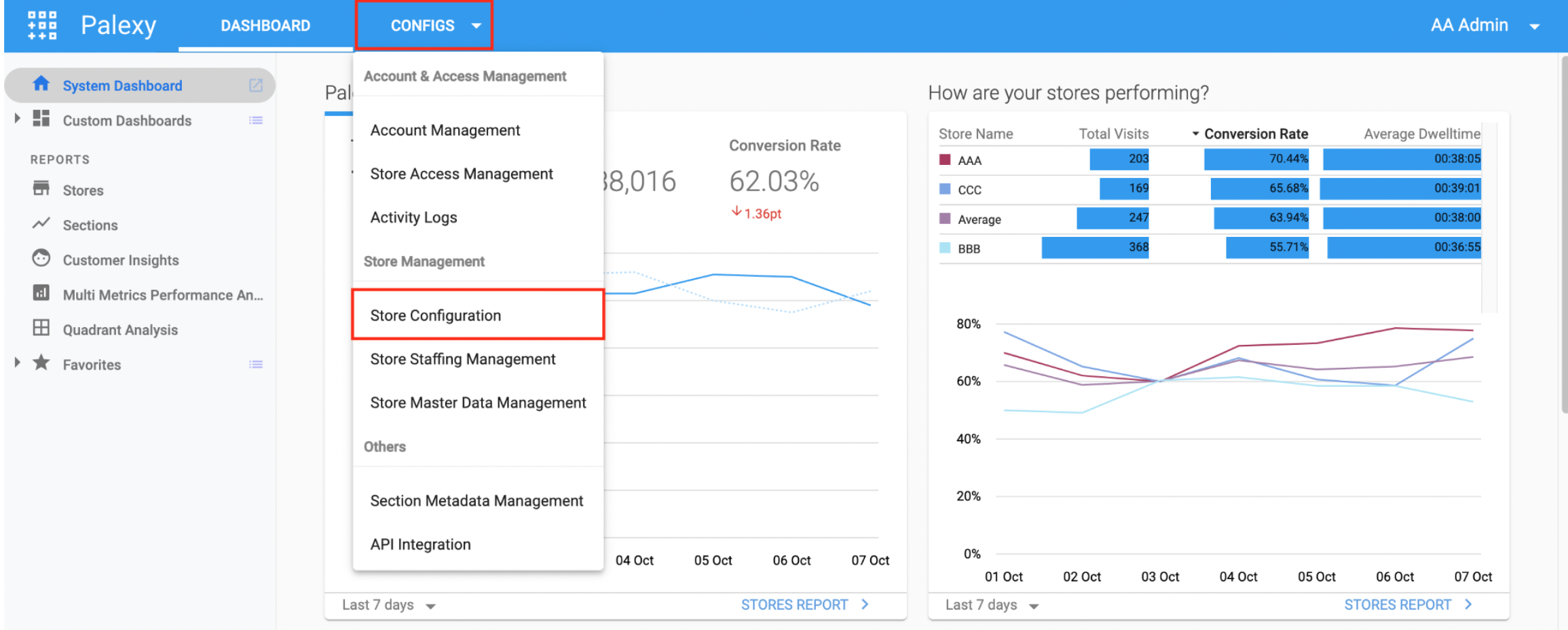
Step 1. Access Store Configuration page by select Configs on top navigation menu then choose Store Configuration
Step 2. Click on store name of the store you want to edit

Step 3. Choose floor (Floor 1/Floor 2 or in this example: AAA) to set up the layout of the floor

Step 4. Choose layout to edit.
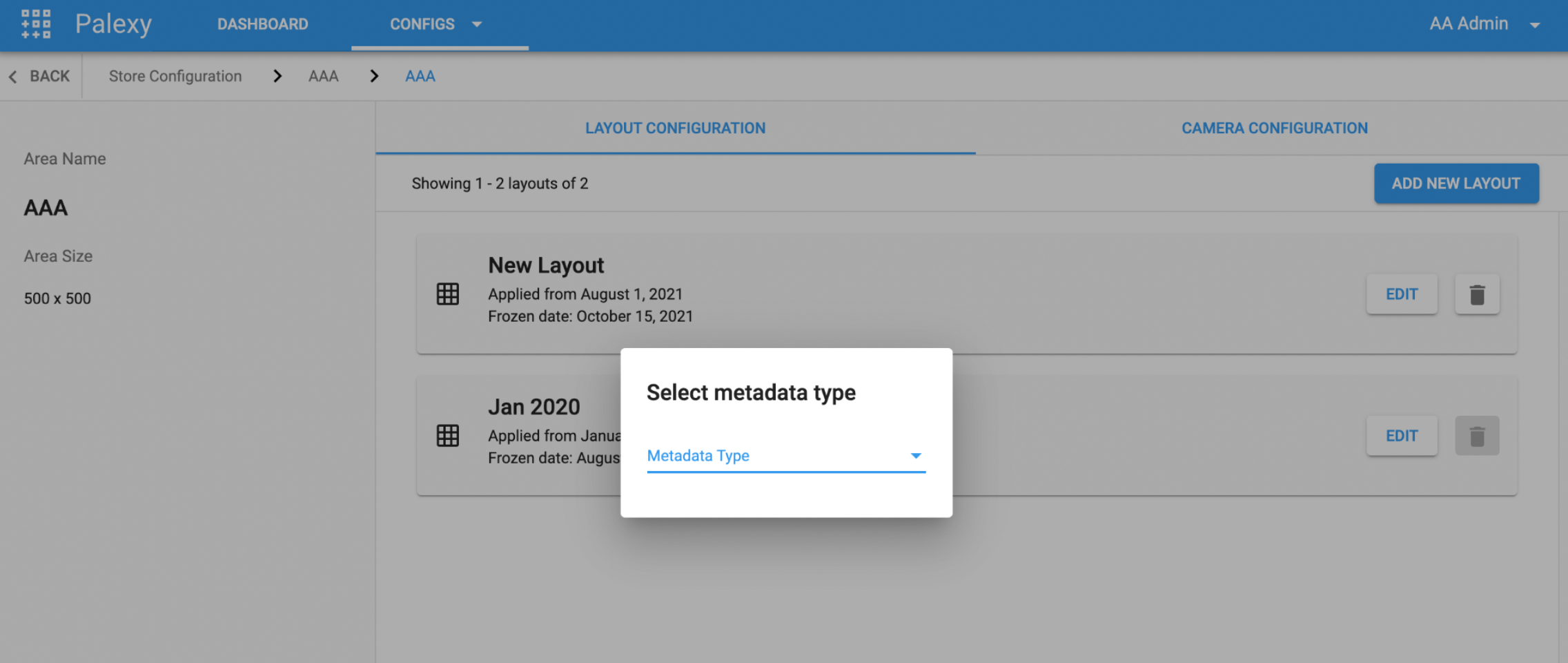
- In Metadata type: Choose Section or Section Deploy
Step 5. Click on Change Image.
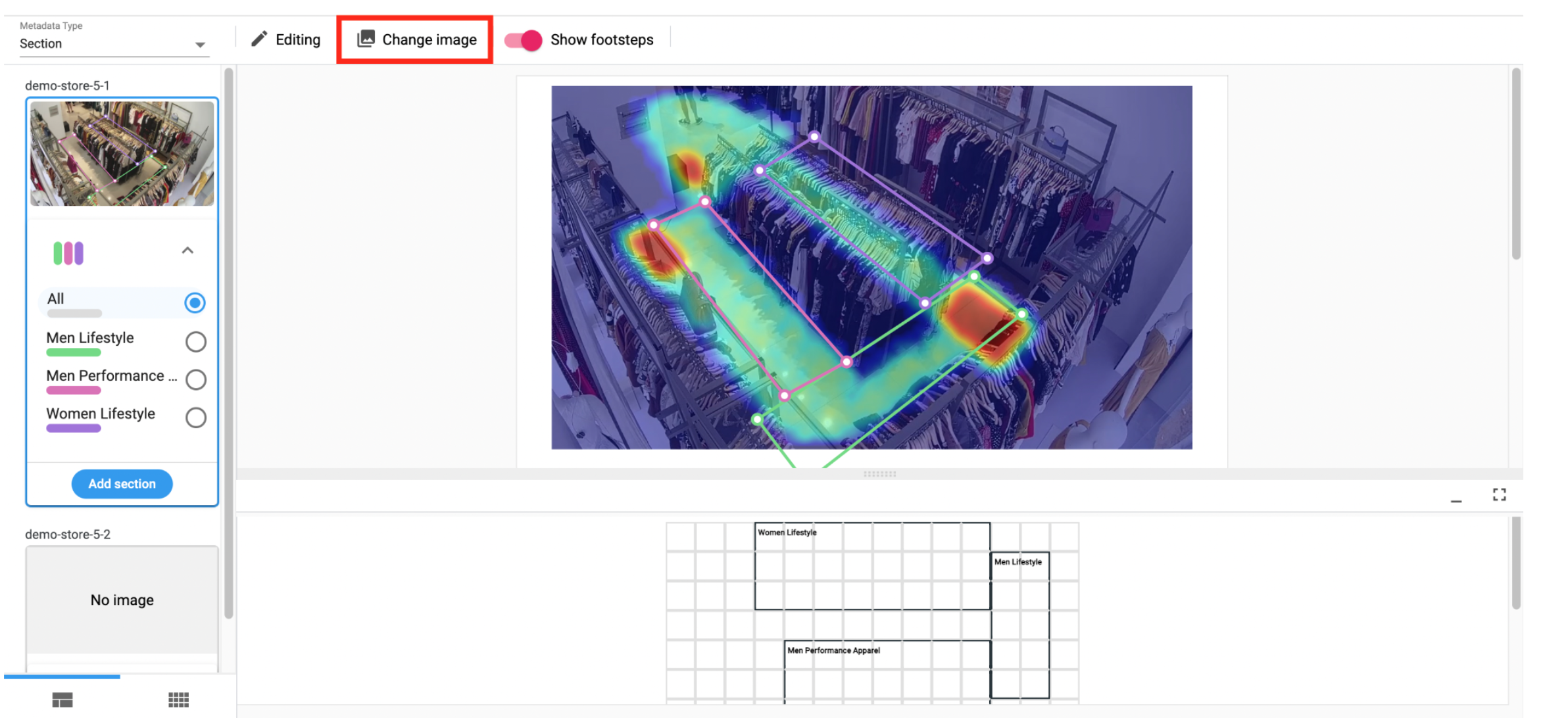
- In Metadata type: Choose Section or Section Deploy
Step 6 Choose existing image taken by system or Take New Photo

Step 7 The system will ask if you want to select the image.

Click OK to confirm to set the selected image to the new layout.